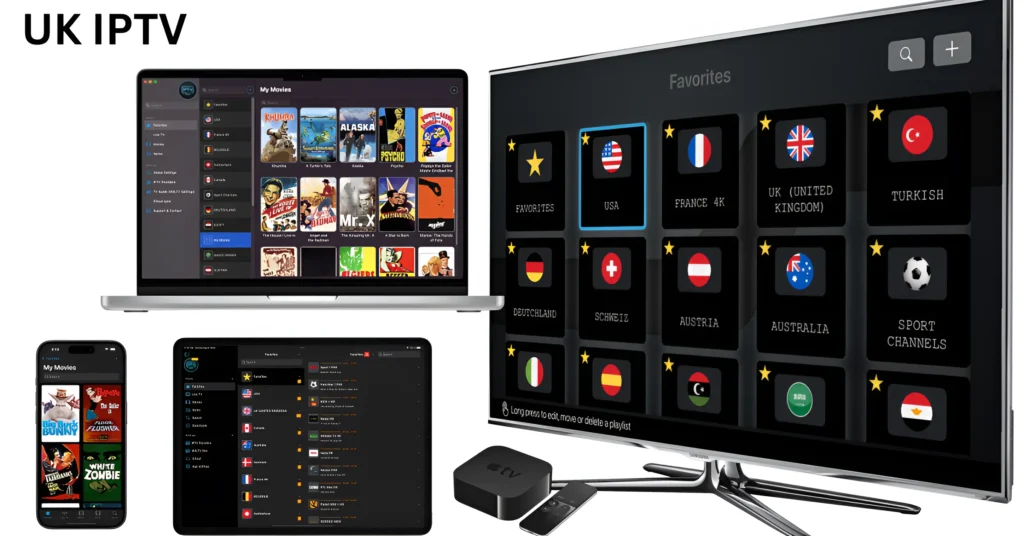
One of the most widely used streaming gadgets worldwide is the Amazon Firestick. Compact, affordable, and powerful, it allows users to turn any TV with an HDMI port into a smart entertainment hub. One of the most exciting ways to maximize the Firestick’s potential is by installing IPTV apps. Install IPTV on Firestick, you can watch live TV, movies, sports, and on-demand content through your internet connection.
In this comprehensive guide, we’ll walk you step by step on how to install iptv smarters pro on Firestick, the best apps to use, legal considerations, troubleshooting, and tips for the best viewing experience. By the end, you’ll be ready to transform your Firestick into a complete IPTV powerhouse.
What is IPTV on Firestick?
IPTV stands for Internet Protocol Television. Instead of receiving signals through satellites or cables, IPTV smarters delivers TV content using the internet. When combined with a Firestick, IPTV gives you access to live channels, sports events, movies, and on-demand shows—all without needing expensive cable contracts.
Many IPTV UK apps are available for Firestick, making it a versatile streaming option. You can install IPTV players and then connect them with your IPTV provider to access channels and VOD content.
Why Choose Firestick for IPTV?
Firestick is one of the most convenient ways to enjoy iptv service. Here’s why:
-
Affordable Device: Firestick is inexpensive compared to other streaming boxes.
-
Easy Setup: Simple installation and navigation through the Amazon interface.
-
App Support: Access to hundreds of IPTV players and streaming apps.
-
Portability: Carry your Firestick anywhere and plug it into any TV.
-
4K Streaming: Some Firestick models support 4K content, perfect for IPTV.
-
Alexa Voice Control: Hands-free searching and channel control.
Preparation Before Install IPTV on Firestick
Before installing IPTV apps, you need to adjust a few settings on your Firestick:
-
Connect Firestick to Wi-Fi
Make sure your Firestick is connected to a stable internet connection, ideally with speeds above 20 Mbps for smooth IPTV streaming. -
Enable Apps from Unknown Sources
-
Go to Settings from the Firestick home screen.
-
Select My Fire TV or Device.
-
Choose Developer Options.
-
Turn on Apps from Unknown Sources.
This step allows you to install IPTV apps that are not available in the Amazon App Store.
-
-
Install a VPN (Optional but Recommended)
A VPN protects your privacy, hides your IP address, and bypasses geo-restrictions. Many IPTV users install VPNs before setting up their apps.
Step-by-Step Guide: How to Install IPTV on Firestick
There are two main methods for installing IPTV apps on Firestick:
Method 1: Install IPTV Player from Amazon App Store
Some iptv united kingdom players are directly available in the Amazon App Store.
-
Choose the Search icon on the Firestick’s home screen.
-
Type the name of the IPTV player, such as TiviMate, IPTV Smarters Pro, or Smart IPTV.
-
Select the app from the list.
-
Click Download or Get.
-
Once installed, open the app.
-
Enter your IPTV provider’s login details (username, password, or M3U URL).
Your IPTV service should now load channels and content.
Method 2: Install IPTV Player via Downloader App
If your iptv subscribe app is not in the App Store, you can sideload it using the Downloader app.
Step 1: Install Downloader App
-
From the Firestick home screen, go to Search.
-
Type Downloader and select it.
-
Click Download to install the app.
Step 2: Use Downloader to Install IPTV App
-
Open Downloader.
-
In the URL bar, enter the APK link provided by your IPTV service or player.
-
Click Go.
-
Wait for the file to download.
-
Select Install.
-
Once installed, open the IPTV UK app and log in with your subscription details.
This method works for british iptv players like OTT Navigator, XCIPTV, and others.
Best IPTV Players for Firestick
Here are some of the most popular IPTV players that work well on Firestick:
1. IPTV Smarters Pro
-
User-friendly interface.
-
Supports multiple IPTV logins.
-
Works with M3U URLs and Xtream Codes API.
-
Includes EPG, catch-up TV, and VOD.
2. TiviMate IPTV Player
-
One of the best IPTV players for Firestick.
-
Intuitive layout with channel guide.
-
Supports multiple playlists.
-
Premium version unlocks advanced features.
3. OTT Navigator
-
Customizable viewing options.
-
Catch-up and DVR functionality.
-
Supports multiple IPTV providers.
4. Smart IPTV (SIPTV)
-
Lightweight and simple.
-
Requires activation fee.
-
Best for experienced users.
Legal Considerations of IPTV on Firestick
While IPTV technology itself is legal, not all IPTV providers have broadcasting rights. Using unlicensed iptv subscription uk services may pose risks such as:
-
Service shutdowns
-
Legal penalties
-
Unreliable streams
For safety, always subscribe to best iptv services that have broadcasting rights and work with official providers. Pairing your Firestick with a VPN also improves privacy.
Troubleshooting IPTV on Firestick
Sometimes IPTV apps may face issues. Here are common problems and fixes:
-
Buffering: Ensure you have high-speed internet and use Ethernet if possible.
-
App Not Working: Clear app cache from Firestick settings or reinstall the app.
-
Login Errors: Double-check IPTV provider credentials.
-
No Audio/Video: Restart the Firestick or check HDMI connections.
-
Crashes During Streaming: Update the IPTV app to the latest version.
Tips for the Best IPTV Experience on Firestick
To enjoy smooth kemo iptv streaming during live sports, movies, or shows, follow these tips:
-
Use internet speeds of at least 20 Mbps.
-
Connect Firestick to a 5GHz Wi-Fi network instead of 2.4GHz.
-
Keep your Firestick updated with the latest firmware.
-
Close unused apps running in the background.
-
Install a VPN for security and bypassing geo-restrictions.
-
Regularly clear the cache to free up memory.
FAQ
1. Do I need a VPN for IPTV on Firestick?
A VPN is highly recommended for privacy, security, and bypassing regional blocks.
2. Can I watch free IPTV on Firestick?
Some apps provide free channels, but premium services offer better quality and reliability.
3. Is IPTV safe on Firestick?
Yes, if you use licensed providers and secure your connection with a VPN.
4. How much internet speed is required for IPTV on Firestick?
At least 20 Mbps for HD and 50 Mbps for 4K streaming.
5. Can I use multiple IPTV apps on Firestick?
Yes, you can install several IPTV players and connect them to different providers.
Future of IPTV and Firestick Streaming
With becoming mainstream in the UK and globally, Firestick continues to be one of the most preferred streaming devices. The integration of AI-powered recommendations, 5G internet, and improved app interfaces will make IPTV even more seamless.
As broadcasters move away from traditional satellite services, Best IPTV combined with Firestick will dominate home entertainment in the near future.
Conclusion: Enjoy Unlimited Entertainment with IPTV on Firestick
Installing IPTV on Firestick unlocks a world of entertainment possibilities. From live sports and international channels to on-demand movies and TV shows, iptv encoder turns your Firestick into the ultimate streaming companion.
With simple setup methods, multiple IPTV players, and wide device compatibility, Firestick is perfect for anyone who wants flexible, affordable, and high-quality TV streaming.
By choosing a trusted IPTV provider, pairing it with a VPN, and following the installation steps in this guide, you can enjoy buffer-free, high-definition entertainment anytime and anywhere.